> ## Documentation Index
> Fetch the complete documentation index at: https://docs.allium.so/llms.txt
> Use this file to discover all available pages before exploring further.
# Custom skills
> Save a prompt as a skill and run it from the Assistant composer with one keystroke.
A **custom skill** is a saved set of instructions that you run by name. Write the prompt once, then type `/` in the composer to run it again with today's data.
Custom skills are private to your user. Other people in your organization or account can't see or run them.
## When to use a skill
`/daily-movers`: the top Base tokens by 24h DEX volume, with anything up 2x day over day flagged.
`/stablecoin-pulse`: weekly stablecoin supply and flows by chain, with the same filters every time.
`/wallet-xray`: profile a wallet's flows and top counterparties. Add the address after the skill name.
Encode the chains, tables, and definitions you use, so you get the same answer every time.
## Create a skill
Ask the Assistant to turn a prompt, or the conversation you just had, into a skill:
```text wrap theme={null}
Save a weekly version of this as a skill
```
The Assistant drafts the name, description, and instructions, shows them to you, and saves the skill after you approve it. To change a skill later, ask the Assistant to update it.
1. Go to **Settings > Skills**, or type `/` in the composer and select **Create skill**.
2. Click **Create Skill**.
3. Enter a name, a description, and the instructions.
4. Click **Create**.
Edit or delete a skill from the same page.
| Field | What to enter | Limit |
| :- | :- | :- |
| **Name** | The command you type after `/`. Lowercase letters, digits, `-`, and `_`, starting with a letter or digit. Note: you can't create skills with the same name as those created by Allium. | 64 characters |
| **Description** | One line that shows in the `/` picker. The Assistant also reads it to decide when a skill applies. | 500 characters |
| **Instructions** | What the Assistant does when the skill runs, written as if you typed it in full. Markdown is supported. | 32,000 characters |
Write instructions the way you would brief an analyst: the chains, the time window, the metric definition, the output format, and what to flag. Name tables when you know them.
## Run a skill
Type `/` in the composer and pick a skill from the list, or keep typing to filter it. Any text after the skill name is passed as context, for example `/wallet-xray 0xd8dA6BF26964aF9D7eEd9e03E53415D37aA96045`. You can link up to 10 skills in one message.
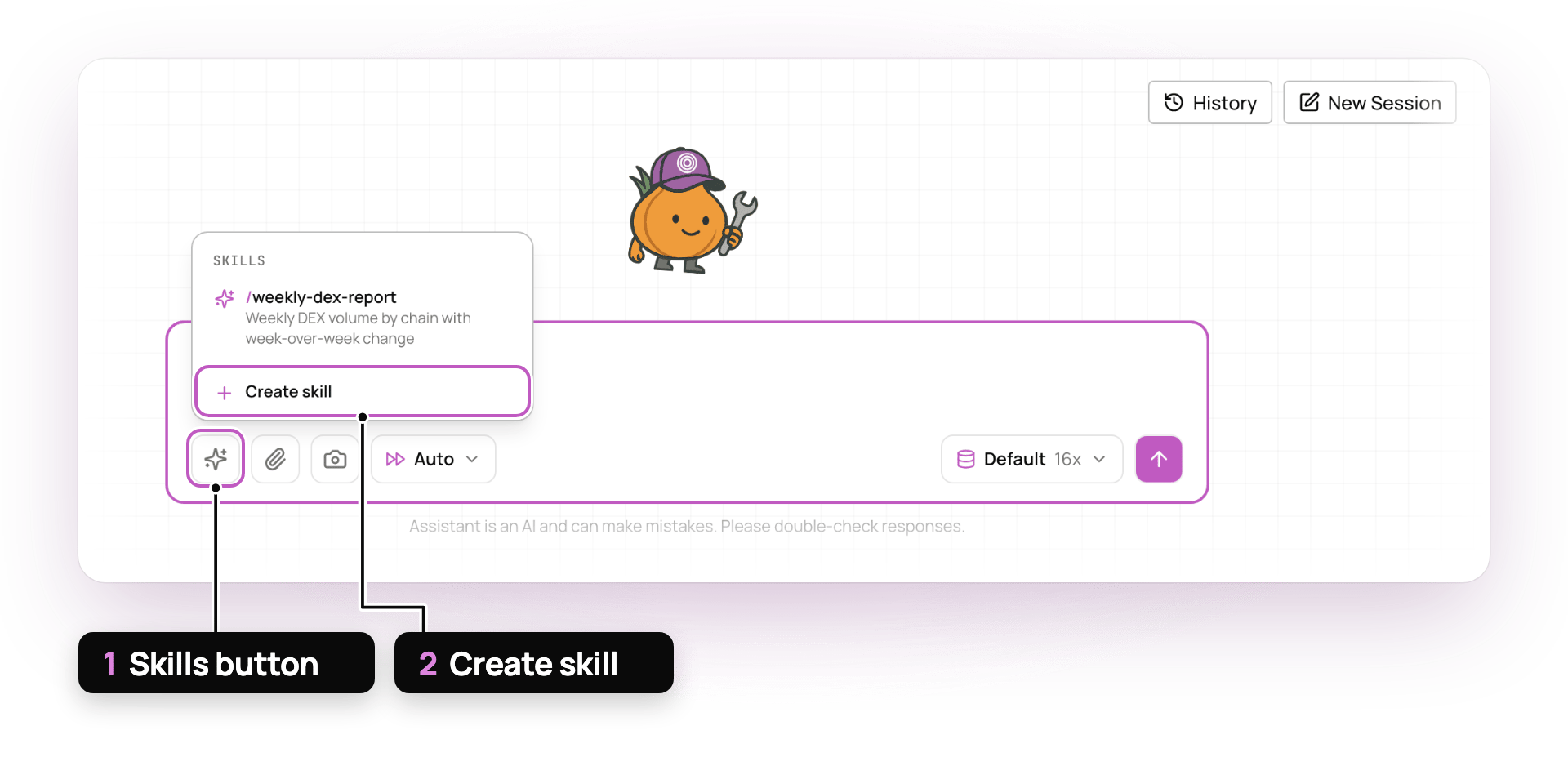 1. **Skills button**
2. **Create skill**
The Assistant can also pick a skill on its own when your question matches the skill's description.
Custom skills sit on top of the skills Allium ships, such as SQL optimization and dashboard design. The Assistant always loads Allium's skills, and you can't edit them. To use Allium's skills in your own agent, see [Skills over MCP](/ai/mcp/tools-reference/skills).
## Related
Store facts, such as addresses and preferences, that every conversation can use
Everything the Assistant can do
1. **Skills button**
2. **Create skill**
The Assistant can also pick a skill on its own when your question matches the skill's description.
Custom skills sit on top of the skills Allium ships, such as SQL optimization and dashboard design. The Assistant always loads Allium's skills, and you can't edit them. To use Allium's skills in your own agent, see [Skills over MCP](/ai/mcp/tools-reference/skills).
## Related
Store facts, such as addresses and preferences, that every conversation can use
Everything the Assistant can do