> ## Documentation Index
> Fetch the complete documentation index at: https://docs.allium.so/llms.txt
> Use this file to discover all available pages before exploring further.
# Upload your own data
> Join your data with ours.
Upload your own private data into the Allium App and join it with our blockchain datasets for powerful custom analysis.
**Common Use Case**
Upload a list of wallet addresses and join them with our [historical balances](/historical-data/supported-blockchains/evm/ethereum/assets/balances) data to track portfolio performance.
## Upload Methods
There are two ways to upload your data:
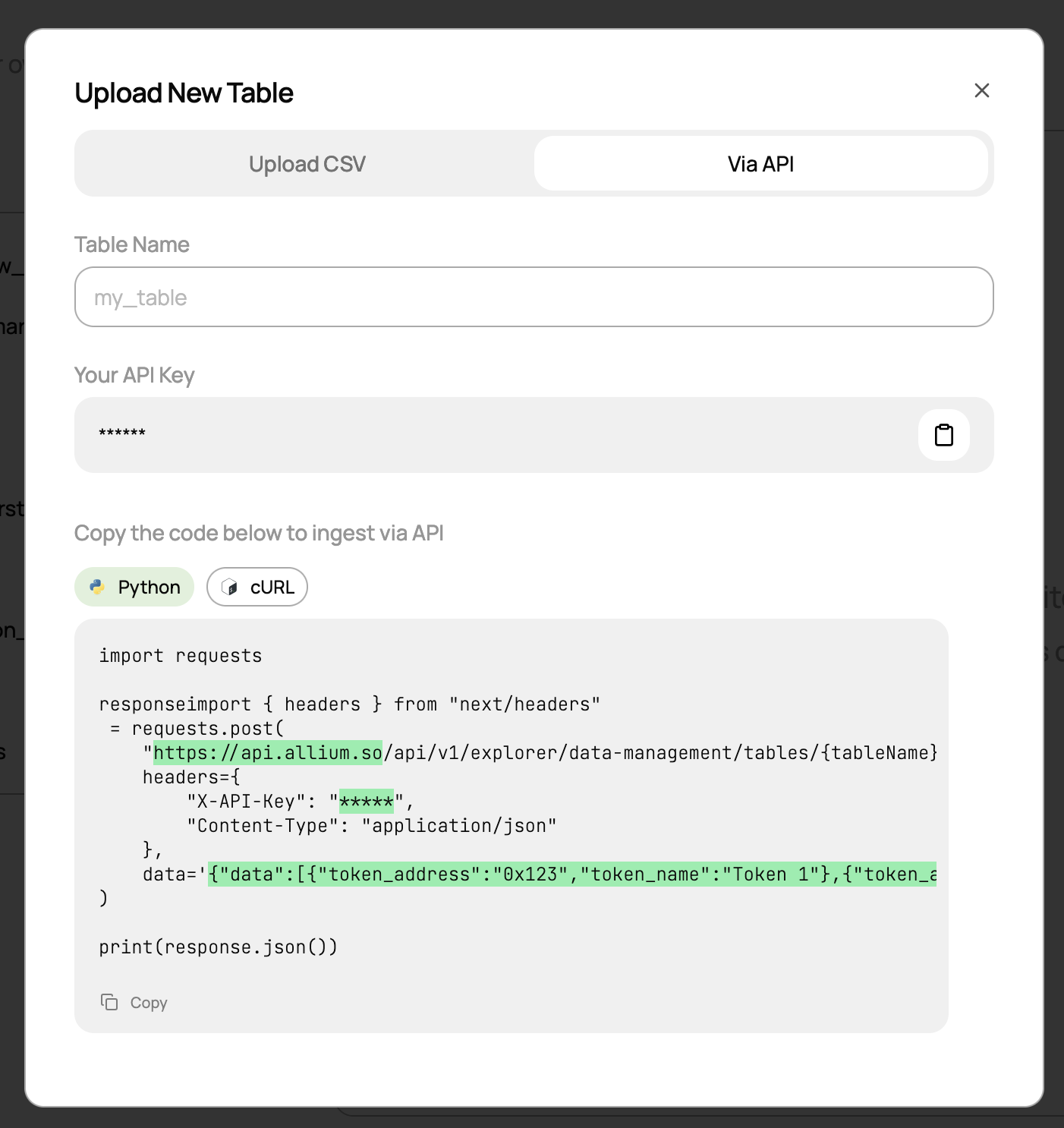
Upload data programmatically via API for automated workflows and larger datasets.
 Upload data manually via CSV files through the web interface.
 ## How to Upload a CSV File
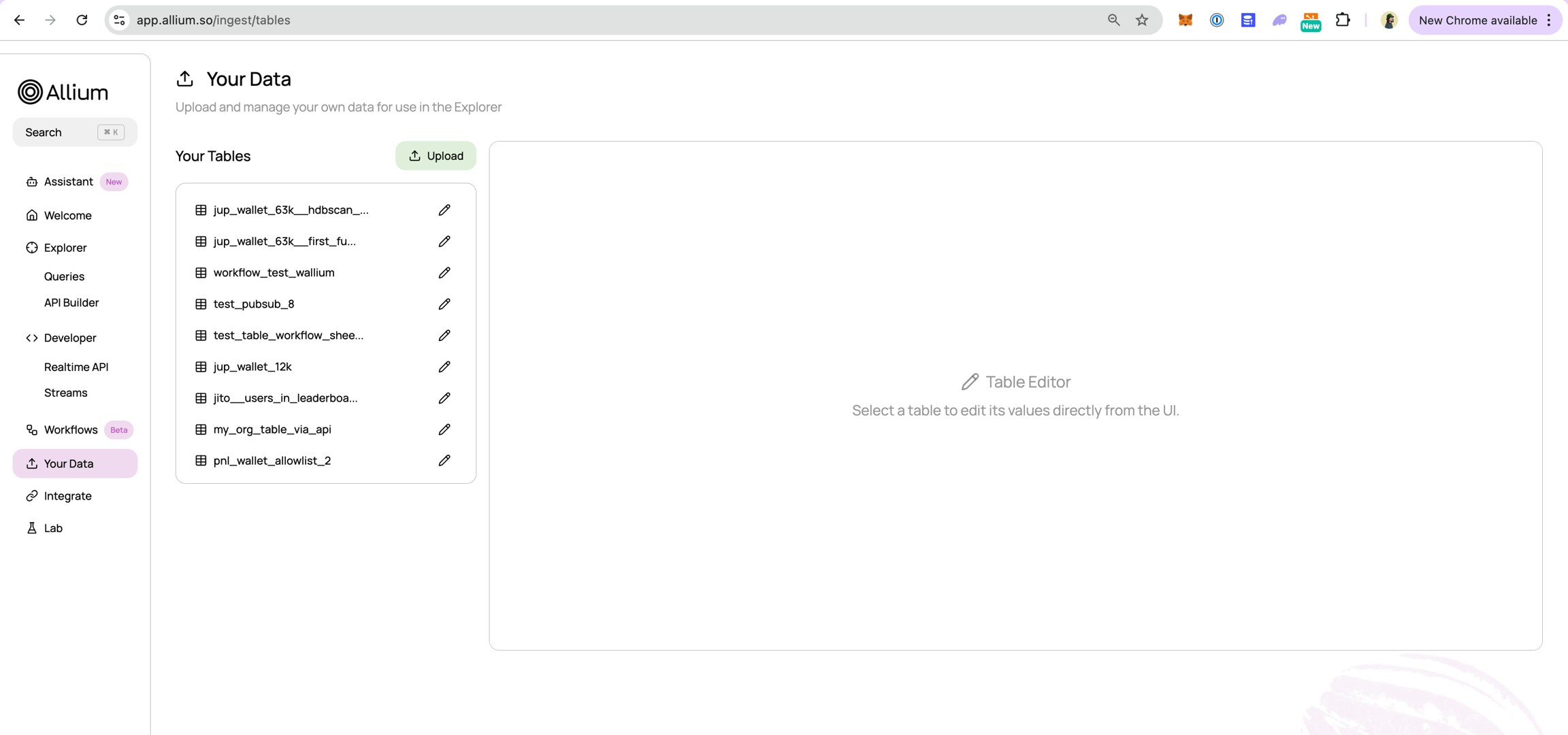
Open the Allium App and go to the **Ingest** section from the main menu.
Enter the desired table name, then click **Choose file** and select your CSV file from your local system.
## How to Upload a CSV File
Open the Allium App and go to the **Ingest** section from the main menu.
Enter the desired table name, then click **Choose file** and select your CSV file from your local system.
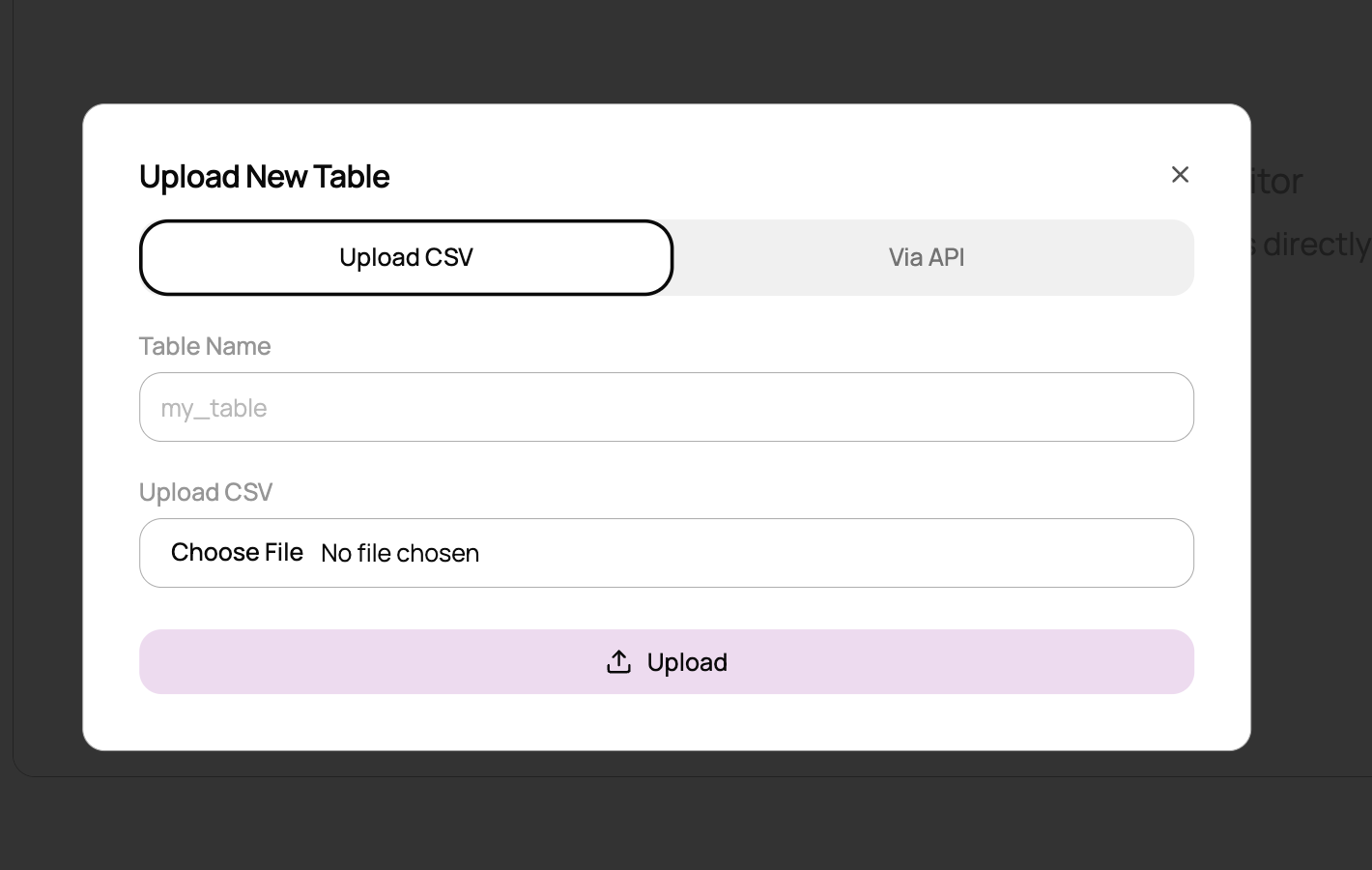 Click **Upload** to insert the dataset. The data will now be available within the Allium App for analysis.
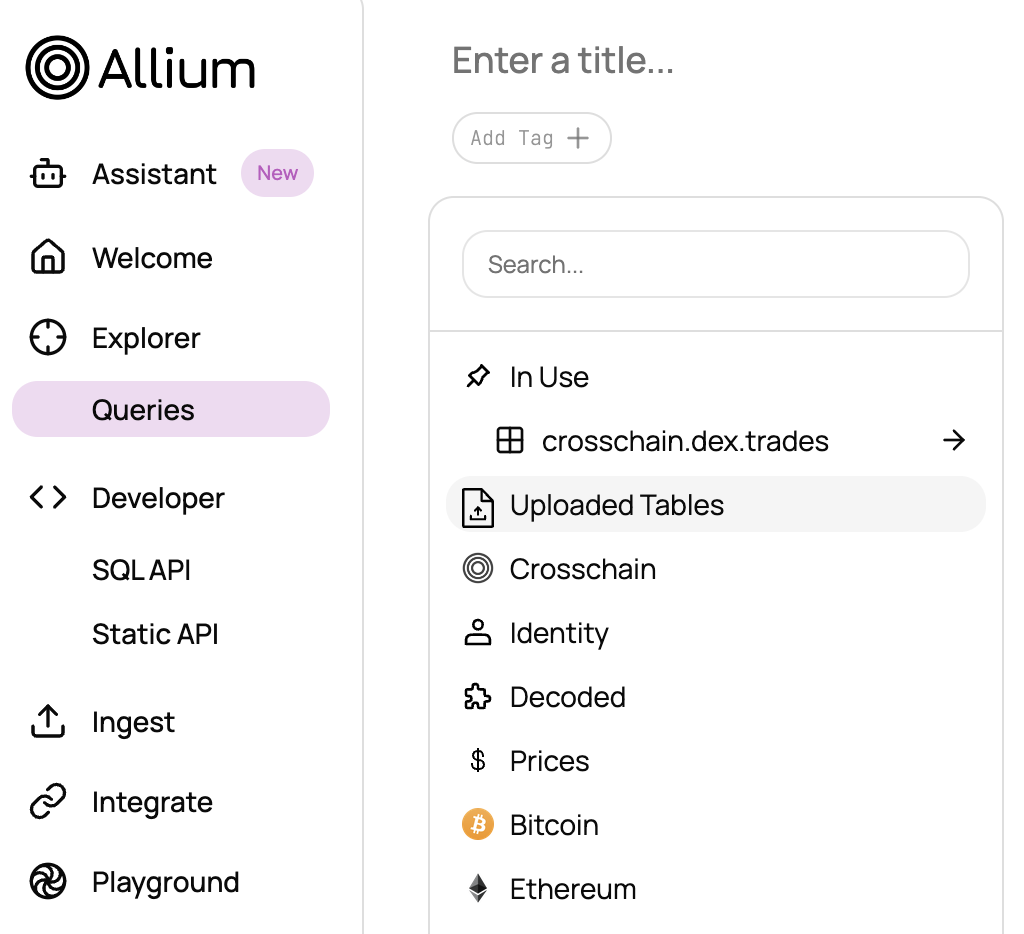
Once added, your data will be available in the **Uploaded Tables** tab.
Click **Upload** to insert the dataset. The data will now be available within the Allium App for analysis.
Once added, your data will be available in the **Uploaded Tables** tab.