> ## Documentation Index
> Fetch the complete documentation index at: https://docs.allium.so/llms.txt
> Use this file to discover all available pages before exploring further.
# Login Session Timeout
> Limit the duration of an idle login session.
Enhance your organization's security by automatically logging out users after a period of inactivity.
## Configure Session Timeout
Open [**Settings → Team**](https://app.allium.so/settings/team) and scroll down to the **Restrict Sessions** section.
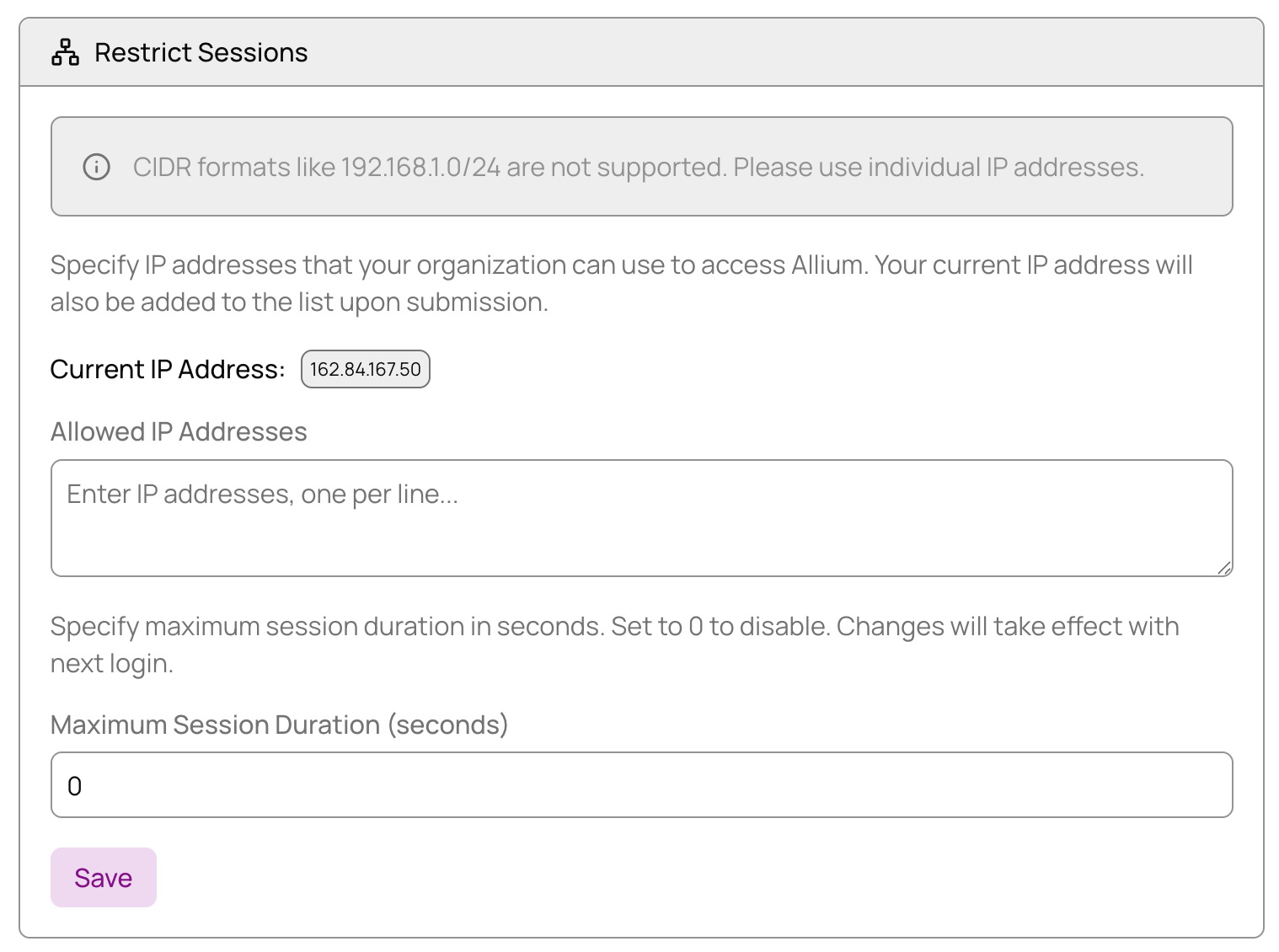 Under **Maximum Session Duration**, enter the number of seconds before an idle session expires.
**Example:** For a 30-minute timeout, enter `1800` seconds (30 minutes × 60 seconds).
Click **Save** to apply your session timeout settings. Users will be automatically logged out after the specified period of inactivity.
**Important:** Setting an extremely low timeout (e.g., less than 5 minutes) may cause you to be logged out before you can modify the setting. If this happens, contact [support@allium.so](mailto:support@allium.so) for assistance.
Under **Maximum Session Duration**, enter the number of seconds before an idle session expires.
**Example:** For a 30-minute timeout, enter `1800` seconds (30 minutes × 60 seconds).
Click **Save** to apply your session timeout settings. Users will be automatically logged out after the specified period of inactivity.
**Important:** Setting an extremely low timeout (e.g., less than 5 minutes) may cause you to be logged out before you can modify the setting. If this happens, contact [support@allium.so](mailto:support@allium.so) for assistance.