> ## Documentation Index
> Fetch the complete documentation index at: https://docs.allium.so/llms.txt
> Use this file to discover all available pages before exploring further.
# SSO / SAML Setup
> Set up Single Sign-On (SSO) for Allium using your identity provider (IdP) via SAML.
Enable Single Sign-On for your organization to allow team members to authenticate using your identity provider credentials.
## Setup Process
In your IdP's admin dashboard, create a new SAML 2.0 application/integration.
When prompted for SAML configuration details, enter the following values:
| Field | Value |
| :------------------------------- | :-------------------------------------------------------- |
| **Single sign-on URL (ACS URL)** | `https://allium-firebase.firebaseapp.com/__/auth/handler` |
| **Entity ID (Audience URI)** | `https://app.allium.so` |
**Important:** Do not include a trailing slash in the SSO URL or Entity ID.
Complete your IdP's setup flow to finalize the application configuration.
If your IdP supports it, you can restrict access by assigning specific groups or users to the application.
After the application is created, your IdP will provide the following values (often available under **SAML Setup Instructions**, **Metadata**, or **Configuration**):
| Field | Description |
| :--------------------------------------- | :------------------------------------- |
| **Identity Provider Single Sign-On URL** | Also called Login URL or SAML Endpoint |
| **Identity Provider Issuer** | Sometimes called Entity ID |
| **X.509 Certificate** | Public certificate for SAML signing |
In Allium, go to [**Team Settings → SSO Setup**](https://app.allium.so/settings/team).
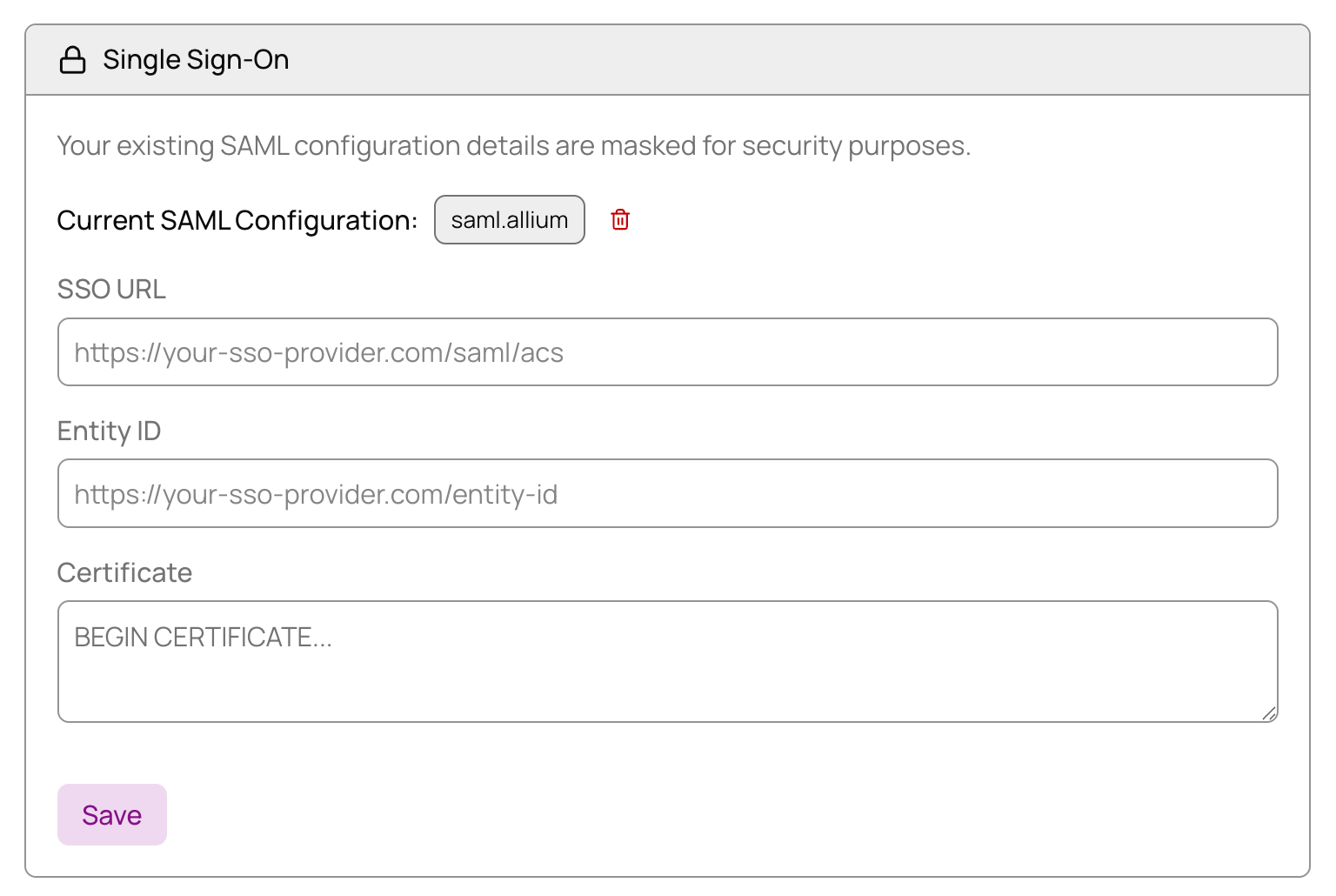 Paste each of the three values from your IdP into the matching fields in Allium.
Save your changes to complete the SSO setup.
**Success!** Once configured, your organization members can sign in to Allium using your IdP credentials.
Paste each of the three values from your IdP into the matching fields in Allium.
Save your changes to complete the SSO setup.
**Success!** Once configured, your organization members can sign in to Allium using your IdP credentials.