> ## Documentation Index
> Fetch the complete documentation index at: https://docs.allium.so/llms.txt
> Use this file to discover all available pages before exploring further.
# User Management
> Manage users and roles in your organization.
Invite team members to your organization and manage their access levels with role-based permissions.
## Invite New Users
Open [**Settings → Team**](https://app.allium.so/settings/team).
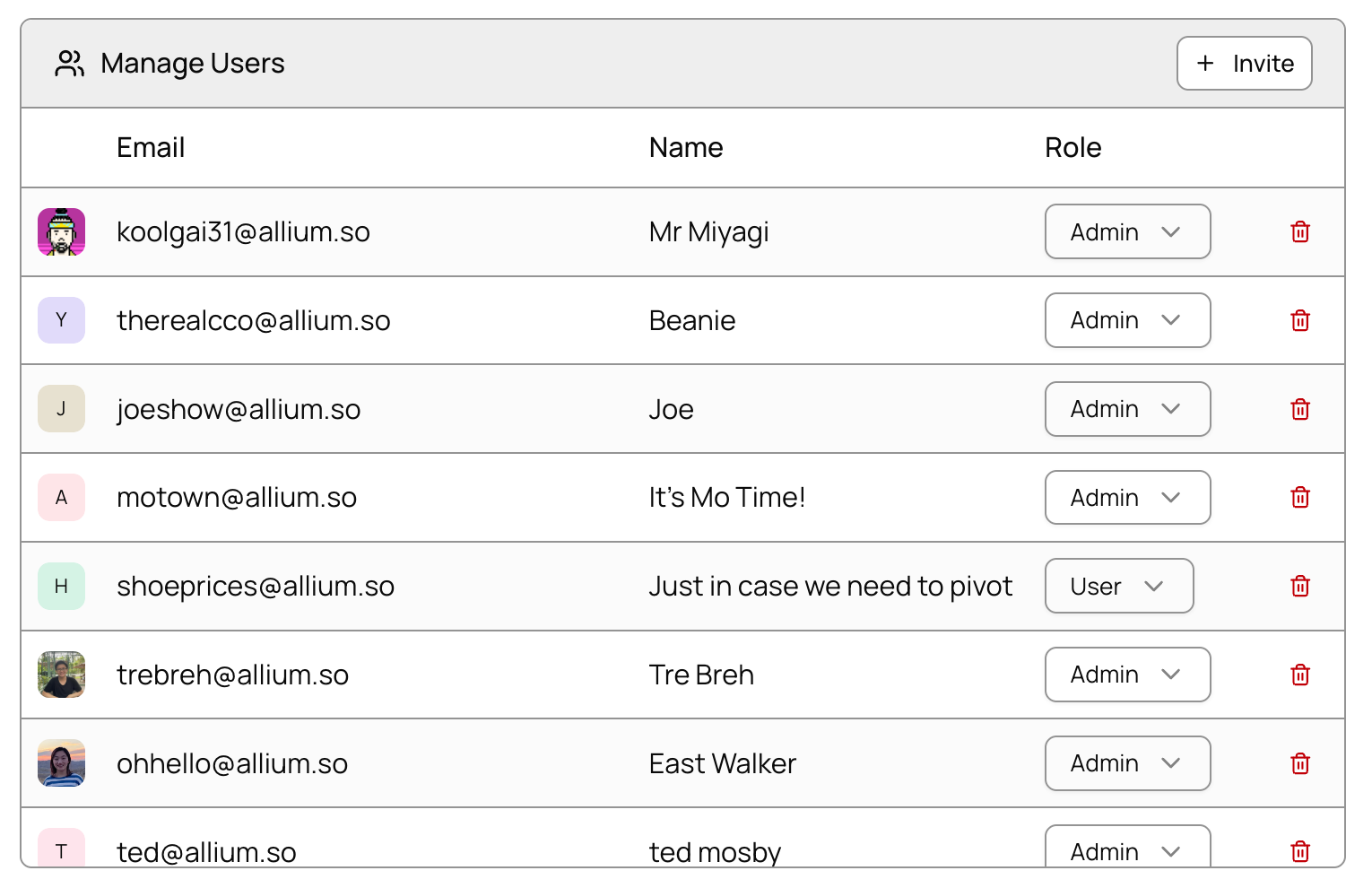 Click **Invite User** to open the invitation dialog.
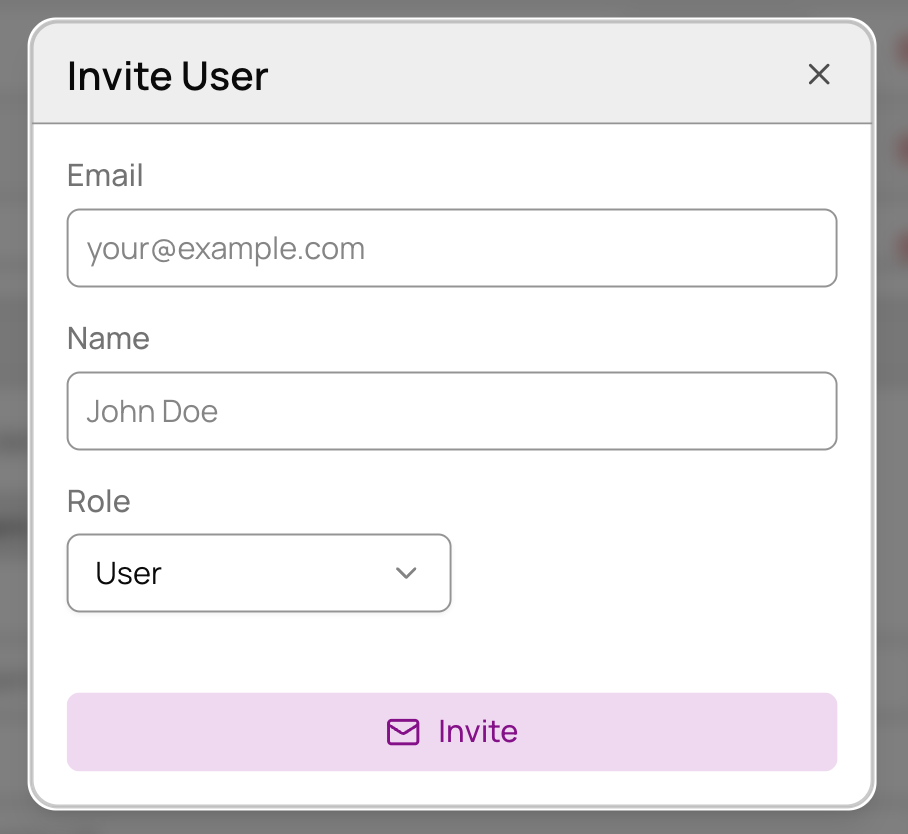 Enter the user's email address and name.
Choose the appropriate role from the dropdown:
| Role | Description |
| :-------- | :----------------------------------------------------------------- |
| **Admin** | Full access to all organizational settings and member capabilities |
| **User** | Full access to platform features within the organization |
| **Guest** | Full platform access but cannot view other organization members |
Click **Invite** to send the invitation email to the user.
## Manage Existing Users
Open [**Settings → Team**](https://app.allium.so/settings/team) to view all users in your organization.
For each user, you can:
* **Change role** - Use the role dropdown to modify their access level
* **Remove user** - Click the remove button to revoke their access
* **View activity** - See their last active timestamp
Enter the user's email address and name.
Choose the appropriate role from the dropdown:
| Role | Description |
| :-------- | :----------------------------------------------------------------- |
| **Admin** | Full access to all organizational settings and member capabilities |
| **User** | Full access to platform features within the organization |
| **Guest** | Full platform access but cannot view other organization members |
Click **Invite** to send the invitation email to the user.
## Manage Existing Users
Open [**Settings → Team**](https://app.allium.so/settings/team) to view all users in your organization.
For each user, you can:
* **Change role** - Use the role dropdown to modify their access level
* **Remove user** - Click the remove button to revoke their access
* **View activity** - See their last active timestamp