> ## Documentation Index
> Fetch the complete documentation index at: https://docs.allium.so/llms.txt
> Use this file to discover all available pages before exploring further.
# Compute Profiles
> Choose the amount of compute resources used to run your queries.
Compute Profiles allow you to choose the amount of compute resources used to run your [Explorer](/app/overview) queries. They also enable you to separate query runs by profile for different use cases.
**Profile Limit:** You can create up to 3 profiles per organization.
## Profile Sizes
Profile size determines the amount of compute resources used to run your queries, affecting speed and cost. In general, query performance scales with size, so a larger profile can run more complex queries faster.
| Size | Speed | Cost |
| :------ | :----------- | :---------- |
| **1x** | Base | Base |
| **2x** | \~2x faster | 2x credits |
| **4x** | \~4x faster | 4x credits |
| **8x** | \~8x faster | 8x credits |
| **16x** | \~16x faster | 16x credits |
For example, you could set up a larger compute profile for complex, long-running queries, and a smaller compute profile for simpler, faster queries.
## Manage Your Compute Profiles
Go to [**Settings → Compute**](https://app.allium.so/settings/compute).
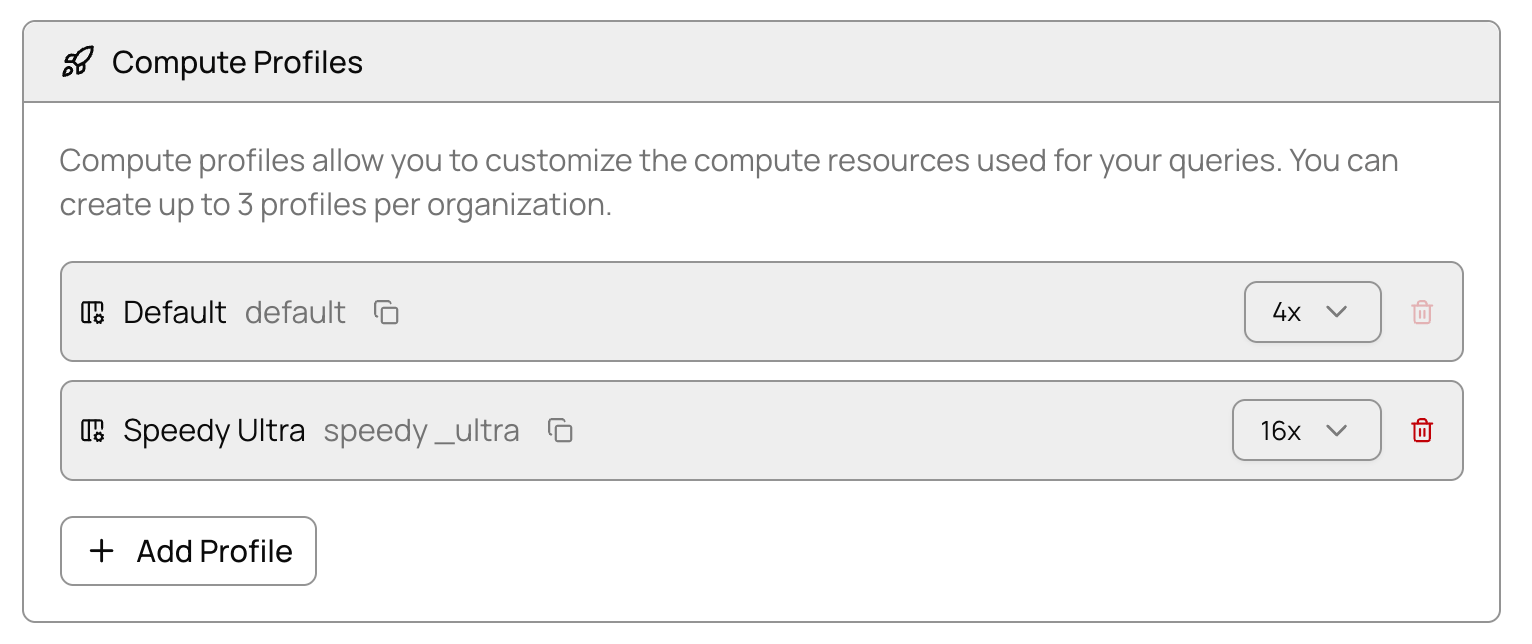
In the **Compute Profiles** section, you can manage your compute profiles:
* **Add Profile** - Create a new compute profile with your desired size
* **Resize Profile** - Change the size of an existing profile
* **Delete Profile** - Remove a profile you no longer need
 ## Run Query with Profile (Allium App)
Go to [**Explorer Queries**](https://app.allium.so/analyze/queries) and select your query.
Click the **Compute Profile** dropdown on the top right of the query editor and select the profile you want to use.
## Run Query with Profile (Allium App)
Go to [**Explorer Queries**](https://app.allium.so/analyze/queries) and select your query.
Click the **Compute Profile** dropdown on the top right of the query editor and select the profile you want to use.
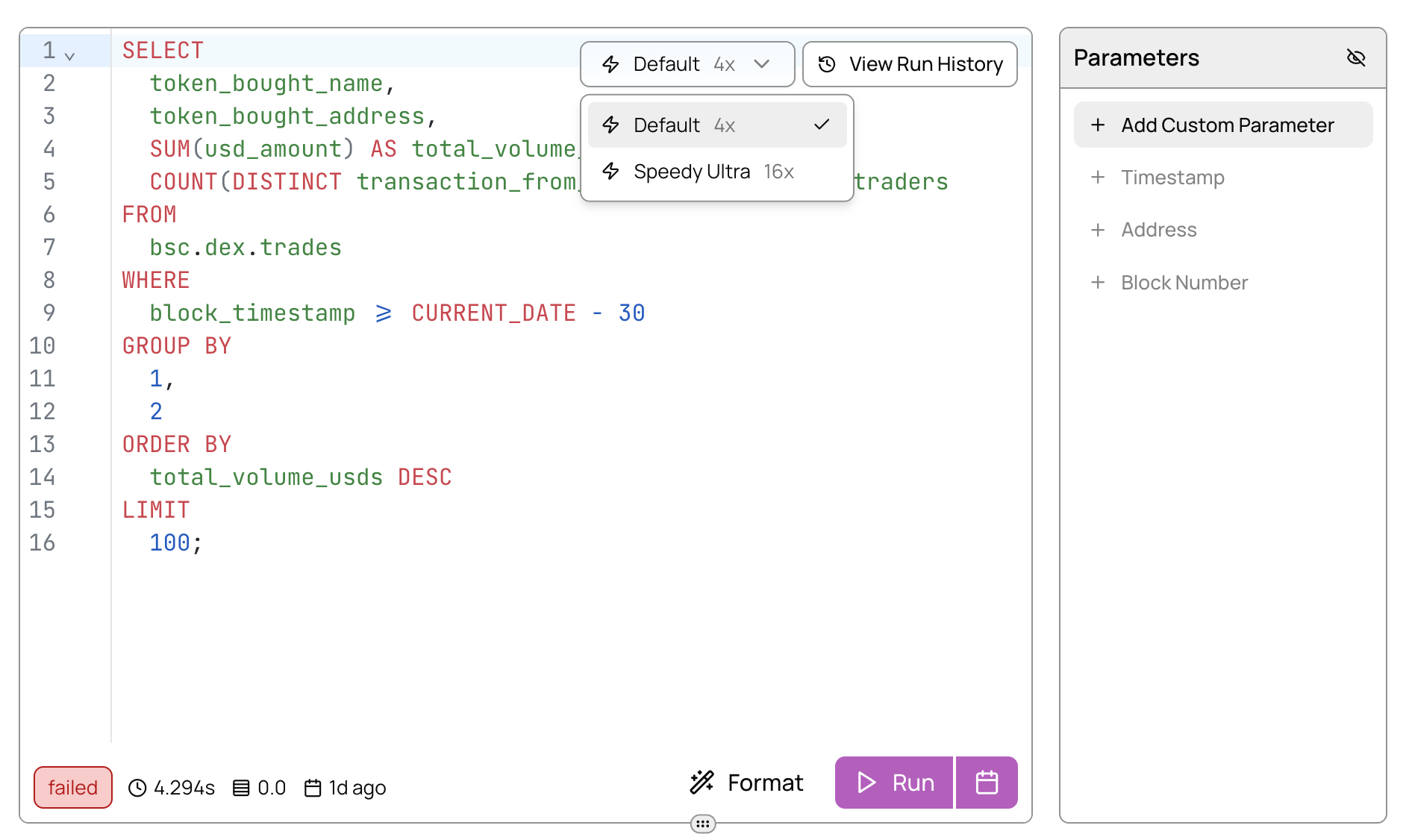 Click **Run** to execute your query. The selected Compute Profile will be used for this run and saved as the default profile for this query.
## Run Query with Profile (API)
You can specify the Compute Profile when running queries via the Explorer API. See the [Execute Query](/api/explorer/run-query) documentation for details.
For this step, be sure to use the identifier of the profile, not the name.
## Queue Isolation
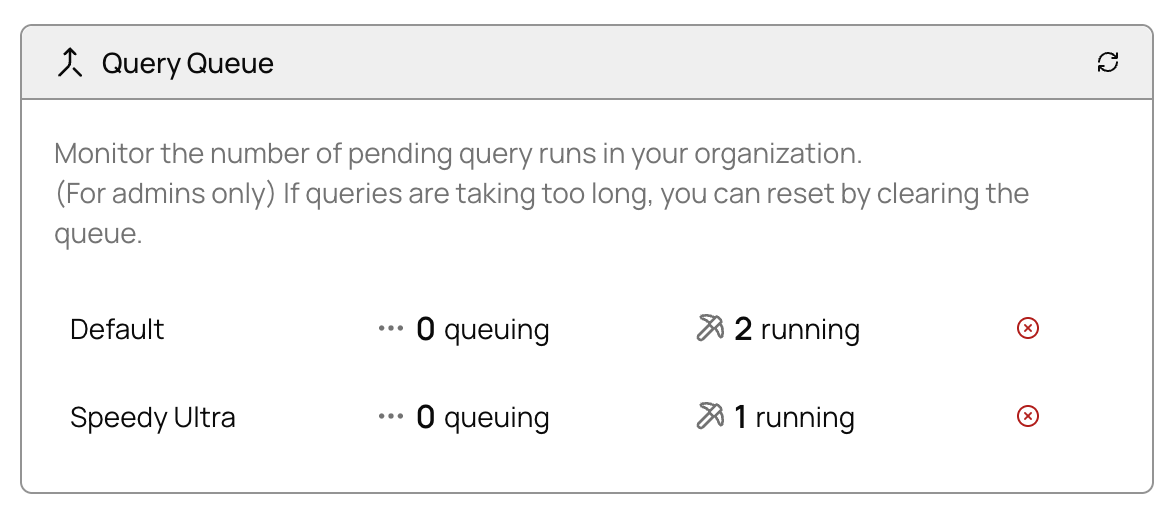
Each Compute Profile has its own isolated query queue. Monitor the number of queued and running queries for each profile at [**Settings → Compute**](https://app.allium.so/settings/compute).
Click **Run** to execute your query. The selected Compute Profile will be used for this run and saved as the default profile for this query.
## Run Query with Profile (API)
You can specify the Compute Profile when running queries via the Explorer API. See the [Execute Query](/api/explorer/run-query) documentation for details.
For this step, be sure to use the identifier of the profile, not the name.
## Queue Isolation
Each Compute Profile has its own isolated query queue. Monitor the number of queued and running queries for each profile at [**Settings → Compute**](https://app.allium.so/settings/compute).